








Create Layouts
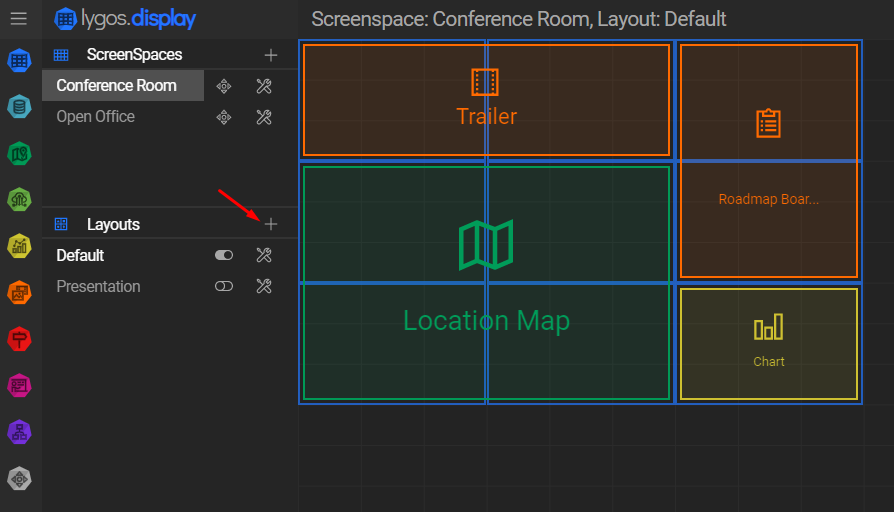
Layouts define how visualizations are arranged across a screenspace. You can manage and create layouts via the Layouts Menu in the Display Module.
Visualizations that span into multiple screen clients render/interact/animate synchronously.
As a result, you can use a videowall as a seamless screen and deploy collages of visualization in any formation.a

Default Layout
- When a new screenspace is created, a blank layout named “Default” is automatically generated for it.
Creating a Layout
- Select a screenspace to create a layout (It can be migrated to other screenspaces later on)
- In the Layouts Menu, press “+” to create a new layout.
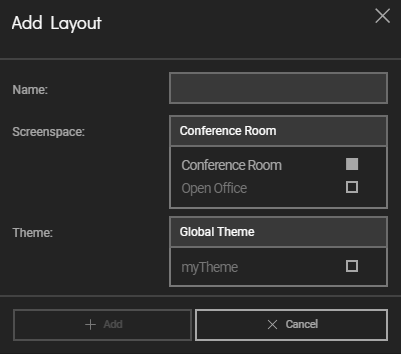
- During layout creation, you can:
- Name your layout
- Select the target screenspace
- Choose a custom theme for the layout (or use the global theme if preferred – see Themes)
- These settings can be updated anytime by pressing the Settings button next to the layout in the Layouts Menu.
Transferring Layouts Between Screenspaces
- You can reassign a layout to a different screenspace from the layout’s settings.
- ⚠️ Keep in mind: Screen configurations (like screen count, grid sizes, or positions) may vary between screenspaces. Transferring a layout could affect the relative positioning of visualizations.
Deploying Layouts
- Use the toggle on button next to a layout to deploy it to its assigned screenspace.
- This action automatically undeploys the currently active layout in that screenspace.
- Only one layout can be active in a screenspace at any given time.
- To clear a layout and show a blank screenspace, press the toggle off button on the active layout.