










Deploy Visualizations
You can deploy any visualization, map, media to your video walls or dashboards from your PC or tablet clients. Deployment can either be done from display module in lygos or some of the editors have deploy button on top right. On Display module select a screenspace (virtual video wall/dashboard representation) and a layout to deploy visualizations to.
Once in the Layout View:
- Go to the Visualizations Tab.
- Select a visualization type from the menu. A list of visualizations of that type will appear.
- You can:
- Drag a visualization card to the layout grid, or
- Click the card to open a right-side options menu and use Load/Unload to deploy it.
- Alternatively, you can press "All" button on Visualization menu, and text search the visualization from all visualizations.
Card Border Colors Indicate Module Types:
- Gray = Not deployed in the current layout
- Orange = Media
- Yellow = Visualization (Charts)
- Green = Map
- Pink =Story
- Red = Signage Loop
- Purple = Expert
- White = Assignable Region
Deployed visualizations will appear on the layout grid. You can:
- Drag and resize them freely
- See screen outlines in the background (blue rectangles) for reference
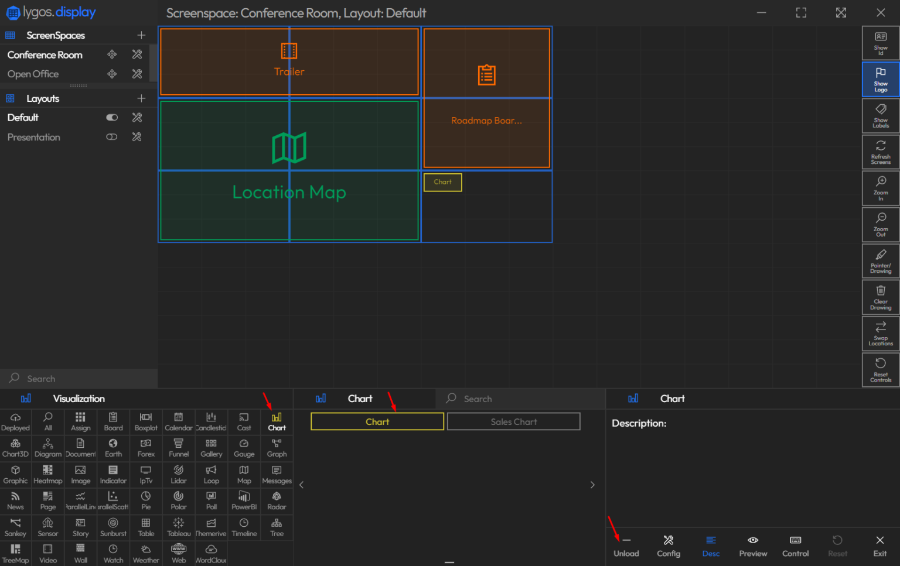
Visualization Tab - Special Tools
The first three options in the Visualization Tab are tools (not visualizations):
Deployed: Shows a list of visualizations already deployed in the layout.
All: Lets you search and access any visualization in the system.
Assign: Allows you to load slots into the layout grid. You can then assign or replace visualizations within these slots using the Visualization Editor’s Assign function.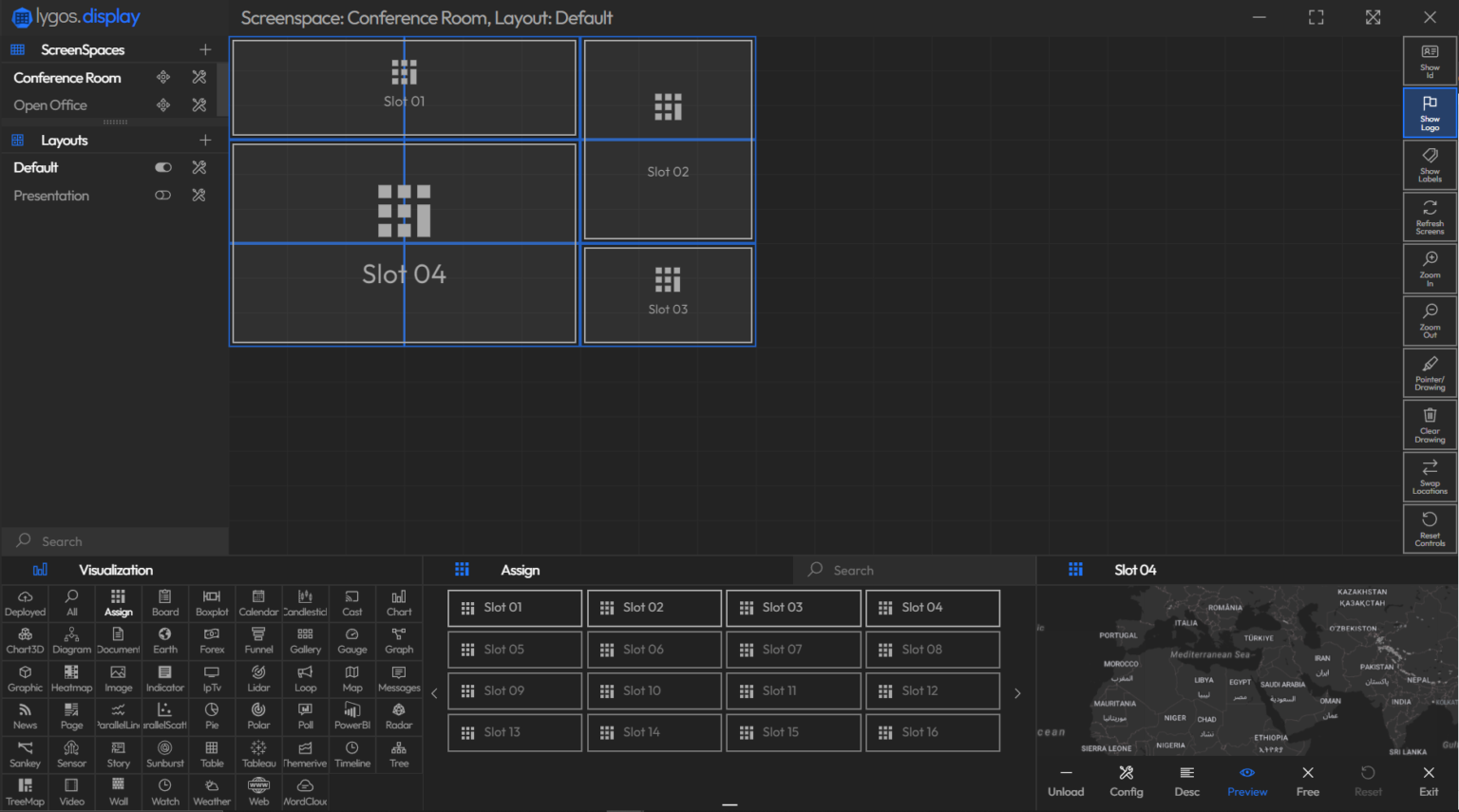

Quick Controls on Visualization Cards
When you select a visualization card, you’ll see the following options:
- Load / Unload – Add or remove the visualization from the layout.
- Config – Opens the full editor for that visualization.
- Control – Opens a compact control panel.
- Preview – Shows a live preview of the visualization.
- Reset – Resets all control changes made (Reverting a Session).
- Exit – Deselects the visualization.