








Point and Draw
Use the Point and Draw feature from Management and Control Clients to interact with a screenspace (video wall or dashboard) as if it were a whiteboard.
Key Features
- Each Layout has its own Drawboard.
- Activating a Layout automatically reactivates its corresponding Drawboard.
- Drawings and pointers appear as overlays on top of deployed visualizations.
Activating Point/Draw Mode
- Go to the Layout View.
- Toggle the Pointer/Drawing button to activate the mode.
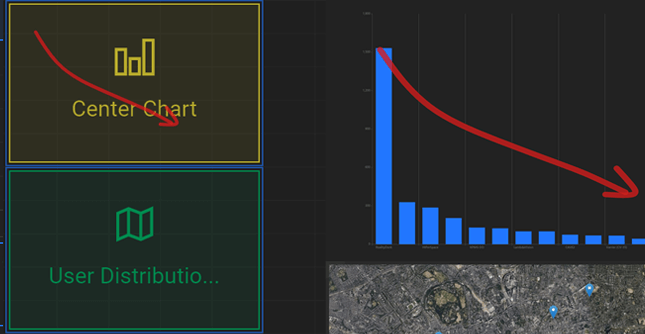
- The layout grid will display a shadow overlay indicating draw mode is active.
- Move your mouse or touch across the layout grid:
- This will display a pointer on the corresponding screens.
- Clicking and dragging will draw lines both on the layout grid and the actual screens.
Multiplayer Drawing
- Multiple clients can draw or point simultaneously on the same layout.
- On tablets, drawing is done using touch gestures (no visible cursor).
Controls & Options
You can access drawing controls from the right quick action menu in the Layout View:
- 🎨 Change Pointer Color
- 🖌️ Adjust Pointer Size
- 🧹 Clear All Drawings
To stop drawing:
- Toggle off the Pointer/Drawing button
- This hides the overlay on your device only.
- Drawings remain on the screens until cleared.
- To remove all drawings from the screens:
- Press the Clear Drawings button in the Layout View.