




Custom Background
Apply your custom backgrounds—such as company logos or brand messages—to deployed screens of video wall. These backgrounds appear behind visualizations, adding personalization or branding to your video walls and dashboards.
This background will scale up to all displays of that screenspace. So on video walls, you will see one logo scaled to the background of the video wall.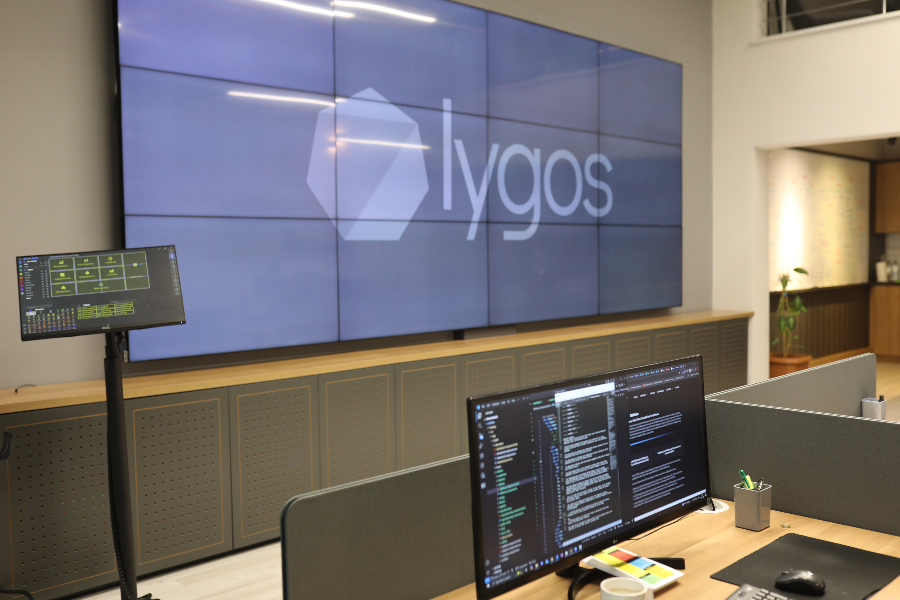
Accessing the Background Settings
- Open the Screenspaces Menu.
- Click the Configure/Settings button (⚙️) for the desired screenspace.
- Navigate to the Custom Background section.
Background Options
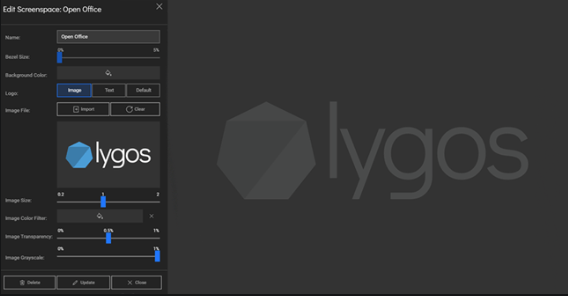
You can choose from three background types:
1. Default
- Displays the default Lygos logo.
2. Image
- Import a custom SVG image.
- Configure the following:
- Size
- Color Filter
- Transparency
- Grayscale Mode
3. Text
- Display custom text as a background.
- Customize:
- Text Size
- Text Color
- Font
- Transparency
Additional Setting
- You can change the background color regardless of the logo type selected.