
How to Automate Video Walls
Managing a large scale video wall in a corporate office or 24/7 control room shouldn't require constant manual intervention. Using the Lygos video wall software, administrators can schedule comprehensive video wall automations. You can configure the system to automatically wake displays, switch data layouts, run digital signage loops, and shut down operations based on your daily schedule.
This guide details how to build a fully automated daily workflow for your video wall displays.
1. Establishing the Video Wall Foundation
Before scheduling actions, you must setup your video wall and screens environment. Open the Display Module and configure your Screenspace. This logically groups your physical monitors into a single synchronized canvas. All automations you build will target this specific Screenspace, ensuring that every connected screen client acts in perfect harmony.
2. Adding Scheduled Automations
Within the Display Module, you can access the automation settings for your active Screenspace. Here, you can define specific trigger times for a variety of system actions, allowing the video wall to adapt dynamically to the time of day.
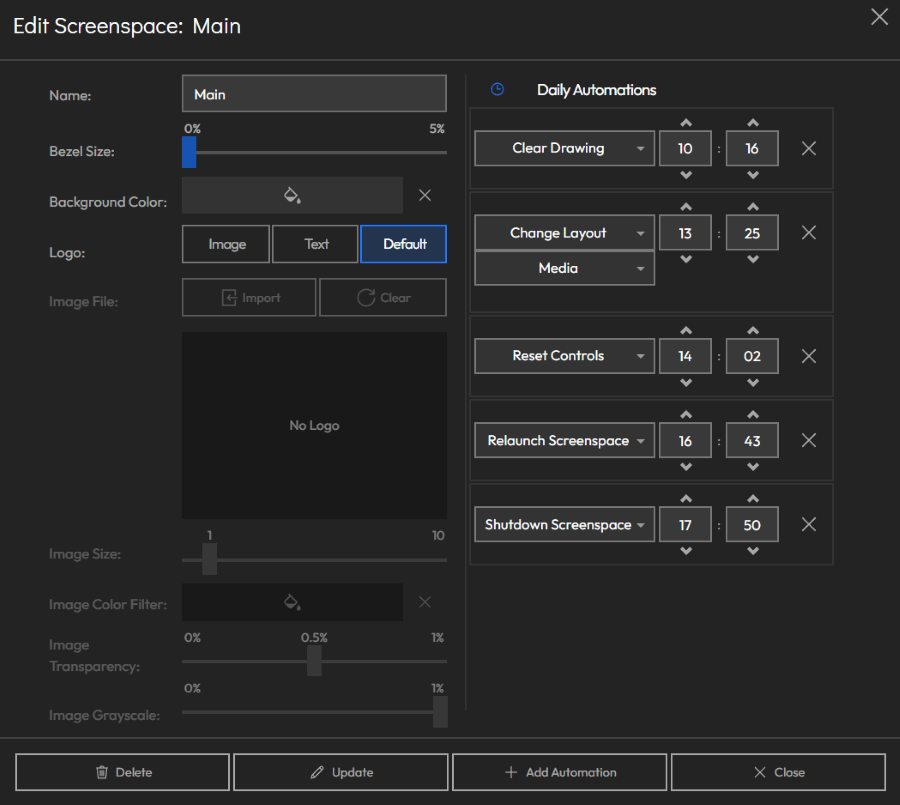
3. Automating the Morning Wake Up
Ensure your control room is fully operational before the first shift arrives.
- Schedule Wake Screenspace at 08:00: The Lygos server will send a Wake on LAN signal to power on the commercial computers connected to your displays. The Lygos Screen Clients will automatically launch and reconnect to the network, preparing the canvas for the day.
4. Deploying Operational Layouts and Managing Sessions
Once the screens are powered on, they power up with last setup and may need the correct data for the morning period.
- Schedule Change Layout: Set your primary data dashboard layout to deploy automatically at 08:15. This populates the screens with live charts, GIS maps, and CCTV streams.
- Clear Drawings and Reset Controls: Throughout the day, operators may draw on the screens using the Point and Draw whiteboard feature or zoom deeply into specific maps. You can schedule the Reset Controls and Clear Drawing actions between operational sessions to ensure the next shift starts with a clean, default view.
5. Transitioning to Lunch Hour Signage and Meetings
During break hours or all hands meetings, displaying dense analytical data might not be necessary.
- Midday Layout Switches: Schedule a layout change at noon to deploy a dedicated Signage loop. This loop can cycle through internal corporate communications, live RSS news feeds, weather updates, and Kanban boards to keep the team casually informed while they step away from their main tasks.
6. Evening Shift and Promotional Display Modes
When the primary workforce leaves the office, your video wall can transition into a branding asset.
- Schedule Signage Mode at 18:00: Trigger another layout change to load an evening presentation. You can use the Media Module to deploy a Gallery of promotional images, or loop high quality corporate videos.
- Custom Backgrounds: Alternatively, if you want a minimalist aesthetic for the evening, you can schedule an empty layout. By configuring a Custom Background in the Display Module, the empty screenspace will prominently display your company SVG logo across the entire video wall canvas.
7. Automating the Nightly Shutdown
Conserving energy and securing your visual data is a critical part of video wall management.
- Schedule Shutdown Screenspace at 20:00: The Lygos server will securely close the active Screen Clients and safely power down the connected commercial PCs. The entire video wall environment will power off automatically, ready to repeat the automated cycle the following morning.