How to Create Data Presentations for Video Walls
Delivering high impact presentations in a control room or corporate environment requires more than standard static slide decks. Using the Lygos Presentation module, you can construct and deliver collaged real time data analytics presentations across massive multi screen video walls for high level meetings.
This guide explains how to design flexible grid based slides, integrate live visualizations, and control your narrative seamlessly using remote devices.
1. Establishing the Video Wall Setup and Screenspace
Before building your slides, you must setup your video wall environment. After setup Navigate to the Display Module and configure a new Screenspace. This action groups your individual commercial displays into a single unified canvas.
2. Building a New Presentation
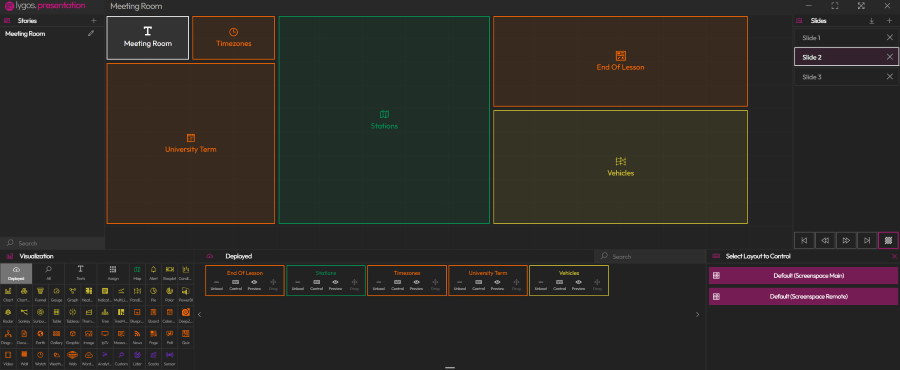
Open the Presentation Module to start crafting your data narrative. Unlike traditional presentation software, Lygos allows you to build dynamic slides that act as layouts for live visualizations. You can create an unlimited number of slides and easily organize their playback sequence using intuitive drag and drop ordering.
3. Populating Slides with Visual Data and Media
Enhance your presentation by integrating diverse content types into your slides. You can load interactive GIS Maps, live IoT Sensor metrics, dynamic charts, and rich Media elements directly onto the slide grid.
- Select a specific slide and choose the visual elements you want to include.
- Position and resize each visualization freely across the layout to design the perfect visual hierarchy.
- Add custom text widgets to serve as headers, labels, or explanatory notes alongside your live data.
4. Deploying the Presentation to Your Screens
Once your slides are configured, you can display the presentation from Display Module or Presentation Editor. Click the Deploy button and select your target Screenspace. You can choose to add the presentation to the first available layout slot or replace an existing visualization. The presentation will instantly appear on your physical video wall, ready for your audience.
5. Controlling and Navigating Slides
Maintaining absolute authority over the pace of your information is critical during a briefing. Lygos provides robust navigation controls directly within the central Editor and the dedicated Control Module.
- Use the built in navigation buttons to jump to the First Slide, move to the Previous or Next Slide, or skip to the Last Slide.
- Toggle visual transition effects on or off for smoother crossfades or instant slide changes depending on your preference.
6. Controlling Individual Visualizations and Multimedia within Slides
Control every single visualization seperatly on video walls. Use Control Module or Control Dashboard to find your controls for deployed presentation visualizations.
7. Utilizing Mobile Control and Air Mouse Features
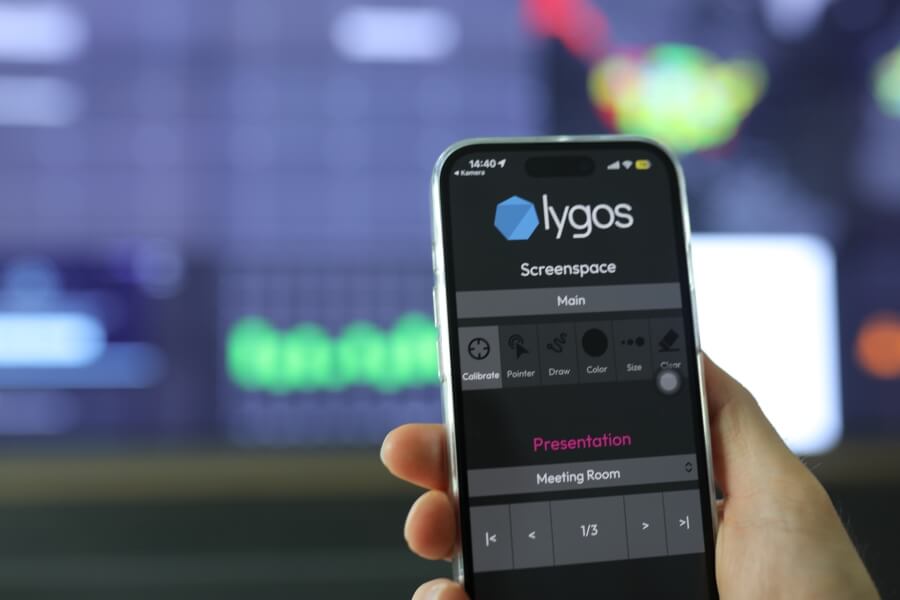
For a truly untethered presentation experience, you can control the video wall directly from your smartphone without installing any external applications.
- Navigate to the Keys and Login page and enable control for your active Screenspace to generate a Control QR Code.
- Scan the QR code with your mobile device to open the secure web based Mobile Control interface.
- Use your phone screen to seamlessly navigate forward and backward through your presentation slides while walking around the room.
- Activate the Air Mouse feature by pointing your phone toward the video wall. This allows you to highlight specific data points, draw temporary annotations on the layout, and guide your audience visual focus in real time.