How to Render Multimedia on Video Walls
Modern video walls are no longer just for static images or single video feeds. Using the Lygos video wall software, you can transform your displays into a versatile multimedia canvas. The dedicated Media Module allows you to seamlessly integrate documents, live web pages, surveillance streams, and interactive 3D graphics alongside your data analytics.
This guide will show you how to prepare, manage, and deploy a wide variety of multimedia content across your video wall screens to create highly engaging operational dashboards and digital signage.
1. Establishing Your Video Wall Canvas
Before projecting any media, you need to setup your video wall and screens. Navigate to the Display Module and create a new Screenspace. This crucial step logically groups your individual commercial displays into one massive synchronized video wall. Once your screens are assigned to this Screenspace, they operate as a single unified monitor, ready to render high resolution multimedia.
2. Creating and Configuring Media Assets
With your Screenspace ready, open the Media Module. This section serves as your centralized hub for all non data visualization content. Instead of managing files on individual computers, you upload or link your assets directly into the Lygos server. You can create a new media document for a PDF report, upload a massive Deep Zoom gigapixel image, or paste an IPTV stream link. Each media type has its own dedicated editor where you can adjust scaling, set playback loops, and configure visual styles.
3. Deploying Content Directly to Your Screens
You do not need to leave the Media Editor to put your content on the wall. Once you have configured an asset like an uploaded Image or an HTML Page, simply click the Deploy button. Select your target Screenspace, and you can either assign the media to a specific dynamic slot or add it to the first available space on the layout grid. The media will instantly render on the physical screens.
4. Diversifying Your Visual Deployments
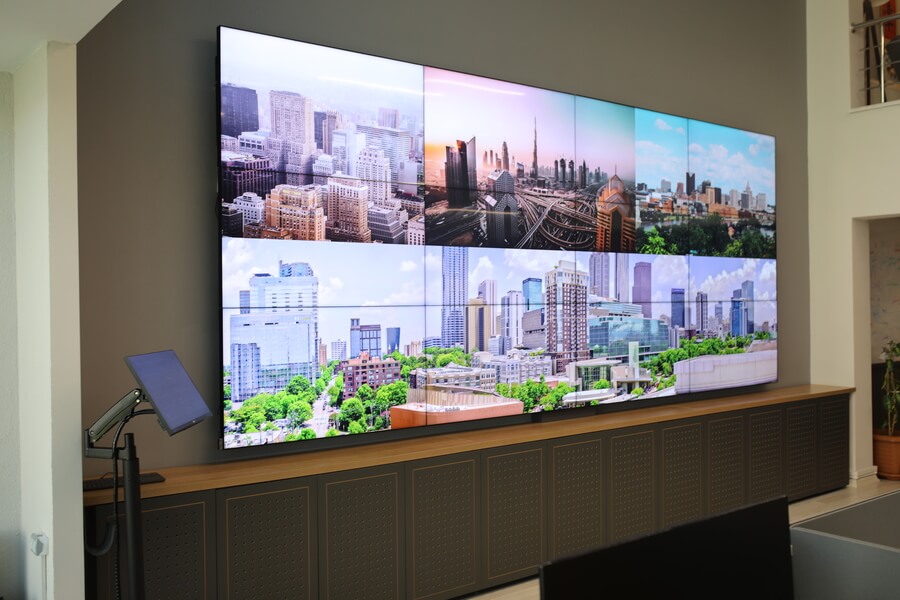
The true power of Lygos lies in its ability to handle vastly different media formats simultaneously. Depending on your environment, you can load highly specific content types to serve your audience.
Deploying Digital Signage Elements
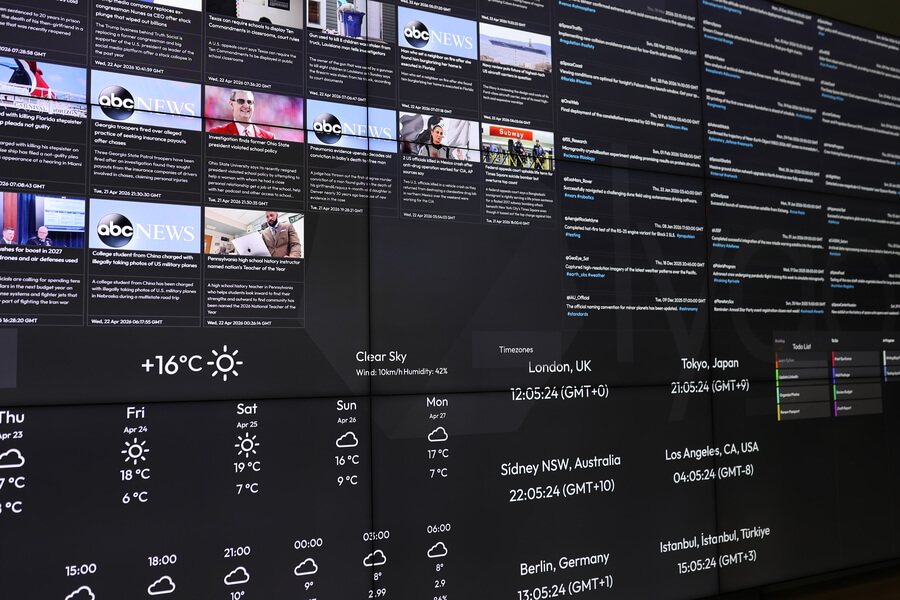
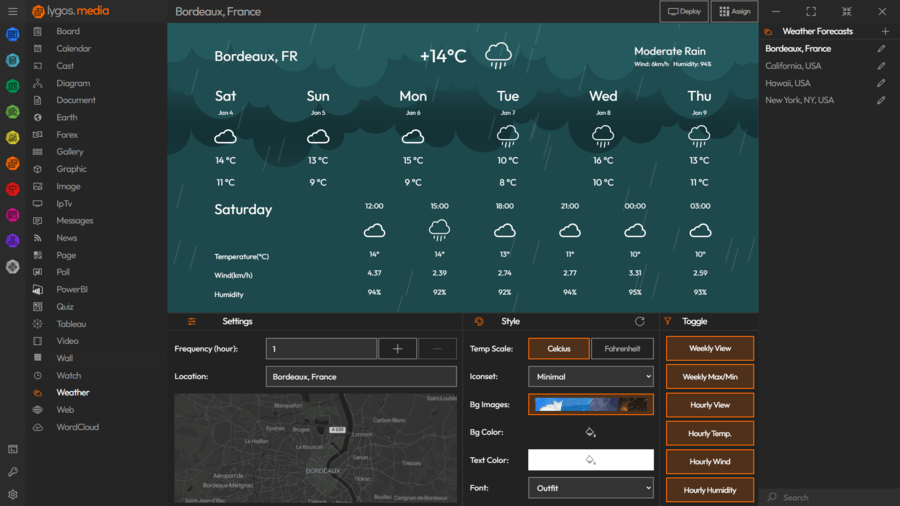
For public facing displays or corporate lobbies, keep your audience informed by integrating live updates. Use the Weather tool to display real time meteorological forecasts complete with animated backgrounds. Add the News element by pasting a standard RSS feed URL to broadcast rolling industry headlines with customizable typography and update frequencies.
Broadcasting Office Information and Schedules
Keep your internal teams aligned by deploying synchronized organizational data. Use the Calendar element to fetch remote schedules from Google Calendar or Outlook so everyone knows the upcoming shift rotations. You can also upload multi page PDF operational briefings using the Documents viewer, configuring it to automatically loop through pages at a set duration so no manual clicking is required.
Showcasing Promotional Videos and Imagery
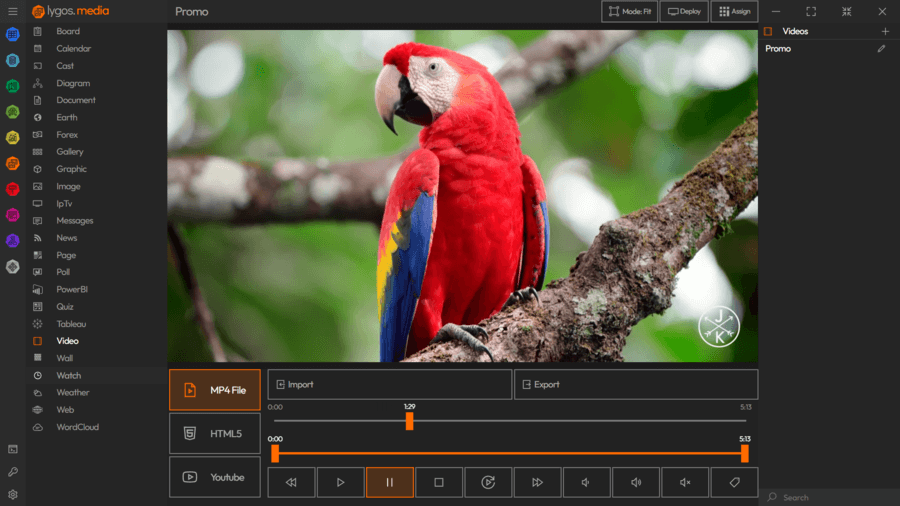
For high impact visual presentations, utilize the Image and Video elements. Upload local MP4 files or embed external YouTube links, applying custom volume controls and continuous looping. You can also build dynamic slideshows using the Gallery feature, allowing the system to automatically arrange and cycle through a curated collection of corporate images.
Integrating Mission Critical Control Room with Media, Maps and Data
In a command center, see the bigger picture with combined utilities of Media, Data, Charts and Maps together. For example, Display architectural plans in full detail next to CCTV camera feeds and sensor readings; ensuring all critical operational elements is visible on the main video wall.
5. Arranging Media Collages on Layout Grids
To maximize the utility of your video wall, you should combine these different media types into a single cohesive view. For example, You can resize the visualizations to make a live CCTV video stream occupy the center screens while placing smaller weather widgets, scrolling news feeds, and PDF documents along the outer edges creating multi layered visual collage. Check how to collage content on video walls.