
How to Set Up Multi Purpose Dashboards for Offices
Modern corporate environments demand flexible communication tools. A single display in a hallway or open office should not be limited to just one function. With the Lygos video wall software, you can transform standard screens into multi purpose dashboards capable of displaying live data, corporate presentations, interactive training modules, and automated digital signage.
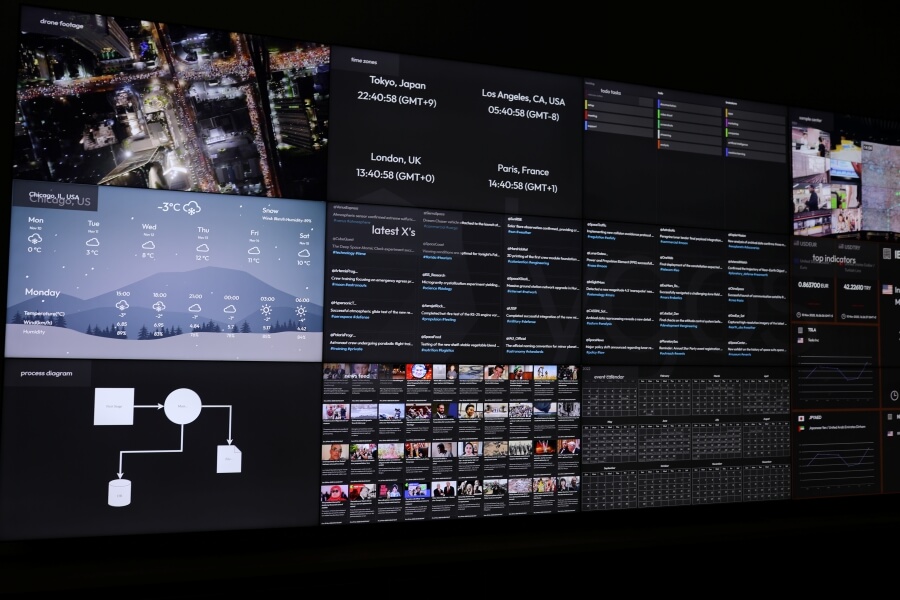
This guide outlines how to build a highly versatile office display ecosystem that adapts to your team daily workflows and communication needs.
1. Deploying Lygos on Office Monitors and Video Walls
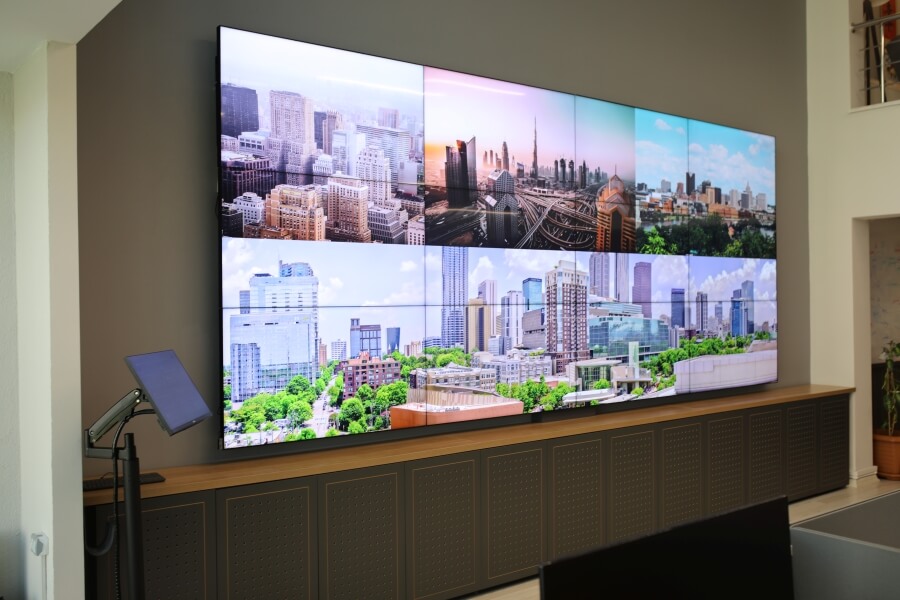
The foundation of a multi purpose dashboard begins with your physical setup. You can install Lygos Screen Clients on commercial computers connected to individual monitors placed along busy corridors, or configure a small 2x2 video wall in your central open office area.
By opening the Display Module and grouping these monitors into a dedicated Screenspace, administrators gain centralized control. This allows you to effortlessly switch the content on these screens depending on the time of day or the specific needs of the teams working nearby.
2. Automating Digital Signage for Passive Viewing
During off peak hours or standard work periods, your displays should automatically provide passive but valuable information. Using the Signage Module, you can create continuous automated loops combining various elements from the Media Module:
- Calendars: Integrate remote Google or Outlook calendars to display upcoming office events and meeting room schedules.
- Weather and News: Keep employees informed with animated local weather forecasts and live scrolling RSS news feeds covering industry headlines.
- Corporate Documents: Loop multi page PDF briefings, HR announcements, or daily cafeteria menus.
- IPTV and Streams: Embed live television feeds or internal corporate broadcasts directly into the signage loop layout.
3. Delivering Dynamic Corporate Presentations
When it is time for a department briefing, your office video wall can instantly switch modes. Using the Presentation Module, you can build slides that are essentially collages of live data visualizations. Rather than showing static screenshots, your presentation will feature real time charts and maps. Presenters can securely connect their smartphones via a Control QR Code, allowing them to navigate slides and use the Air Mouse feature to highlight key points while walking around the open office.
4. Building Live Sales and Performance Dashboards
To motivate your workforce, deploy live metrics where everyone can see them. Navigate to the Data Module to connect your CRM databases or live sales REST APIs. Then, use the Visualization Module to translate those numbers into engaging KPI indicators, dynamic bar charts, and growth timelines. By deploying these visualizations to your office dashboard, your sales and support teams receive immediate, real time feedback on their daily targets.
5. Facilitating Interactive Data Exploration and Meetings
Your multi purpose dashboard should serve as a collaborative hub during impromptu meetings. By logging into the Control Dashboard using a tablet or laptop, teams can actively interact with the deployed data.
Operators can zoom into specific geographic regions on a map, scrub through historical timelines to identify trends, and use the Point and Draw whiteboard feature to annotate over live charts. You can also deploy Kanban boards from the Media Module to facilitate agile sprint planning sessions directly on the open office video wall.
6. Broadcasting Educational and Training Videos
Continuous learning is vital for corporate growth. The Video element within the Media Module allows you to upload local training videos or embed external YouTube tutorials. You can deploy these videos to specific layout slots on your multi purpose screens, complete with custom looping and volume controls, ensuring new hires and existing staff have constant access to educational material.
7. Hosting Interactive Quizzes for Employee Engagement
Boost morale and gamify your corporate training by using the Quiz module. You can build interactive trivia games regarding company policies, new product launches, or casual Friday topics. Employees simply scan a QR code on the dashboard to join from their mobile devices. The main screen displays a countdown timer and live leaderboards, turning standard office displays into a highly engaging team building platform.
8. Gathering Immediate Feedback with Real Time Polls
When leadership needs rapid input from the team, the Poll module is the perfect tool. Whether you are deciding on the location for the next company retreat or gathering feedback on a recent town hall meeting, you can deploy a poll to your office displays. Employees scan the QR code to submit their secure vote, and the dashboard instantly updates to show animated pie charts, grids, or treemaps reflecting the live voting results.