
How to Control Video Walls from Tablets and PCs Remotely
Managing a massive video wall in a busy operations center requires immediate and flexible interaction. Operators cannot be tied to a single stationary keyboard. Using the Lygos video wall software, you can seamlessly control, manage, and interact with your multi screen video walls remotely using standard tablets, desktop PCs, and even mobile smartphones.
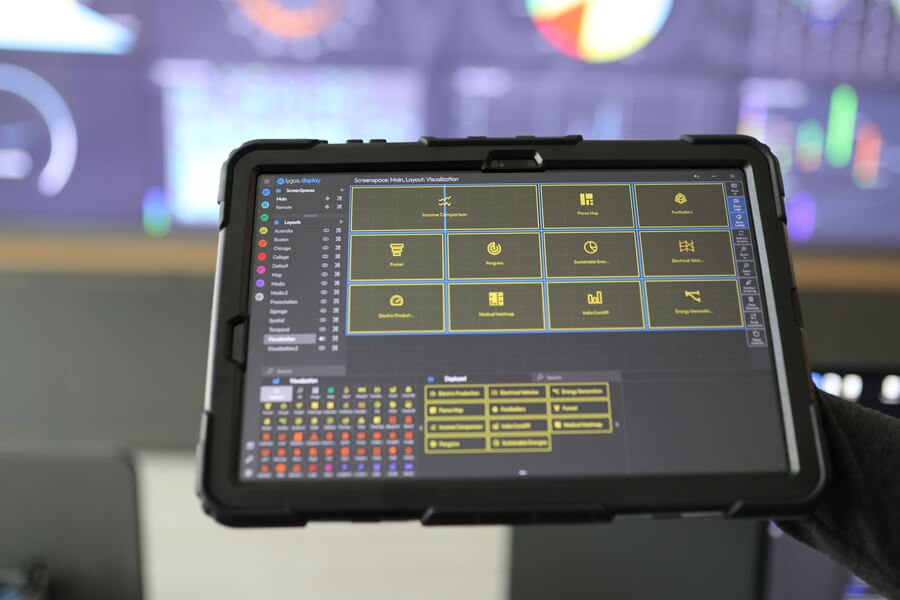
This guide details how to establish your remote control environment, connect various devices, and leverage collaborative tools to manage your visual data analytics dynamically.
1. Establishing the Video Wall Architecture
Before remote devices can interact with your displays, the central environment must be established. One dedicated PC must be running the Lygos application in Local Mode, acting as the central Server. The commercial computers driving your actual video wall monitors operate as Screen Clients. Within the Display Module, these individual screen nodes are grouped into a single unified Screenspace, creating the canvas that your remote devices will soon command.
2. Deploying Remote Clients on Tablets and PCs
You do not need specialized hardware to command the system. You can install the Lygos application on standard commercial PCs and tablets.
- PC Clients: When launching Lygos on a remote desktop or laptop, select Remote Mode. From here, you can summon multiple Management Clients or Control Clients depending on your required tasks.
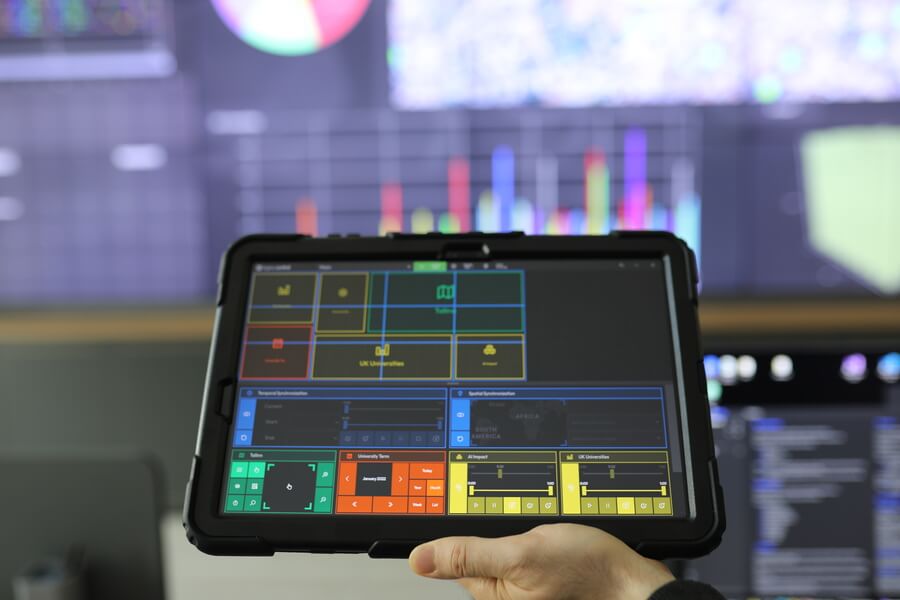
- Tablet Clients: The Lygos Tablet App operates exclusively in Remote Mode. It is optimized for touch interaction, allowing you to display a single, highly responsive Control Client or Management Client interface tailored for handheld use.
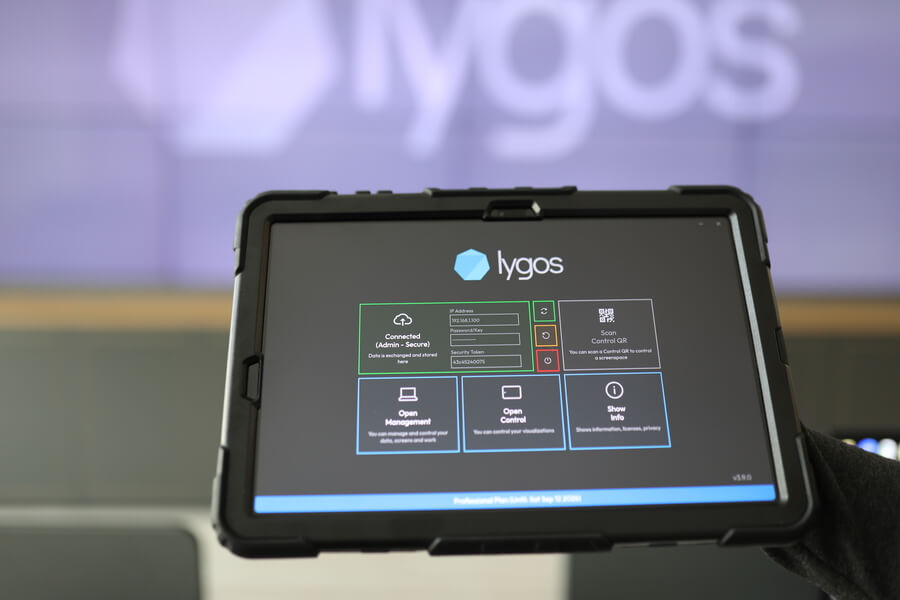
3. Securely Connecting Devices to the Visual Network
Lygos utilizes a strict level based access system to ensure your operations center remains secure while offering flexible remote access.
- Administrators can connect PC and tablet clients to the server using specific Master Keys or customized User Keys.
- Providing a Management Key grants full administrative privileges to edit layouts and configure data sources.
- Providing a Control Key restricts the user to interactive features only, preventing them from accidentally altering core system configurations.
- For rapid access, tablet users can instantly connect by scanning a secure Control QR Code generated from the main Server or Management Client.
4. Managing Video Walls via the Management Client
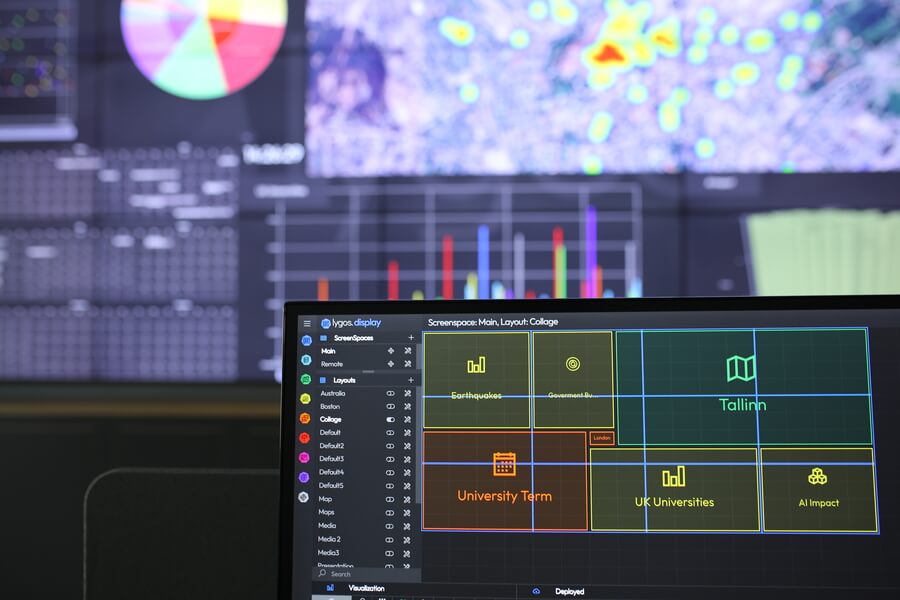
Once connected with a Management Key, your remote PC or tablet becomes a powerful administrative workstation. You can browse all available visual assets on the server and construct dynamic Layouts. With a simple tap or click, you can deploy interactive GIS maps, live sensor charts, and multimedia documents directly to the video wall Screenspace. Furthermore, you retain remote power authority, allowing you to Wake on LAN, reboot, or shut down the video wall screen nodes without leaving your desk.
5. Interacting Real Time with the Control Dashboard
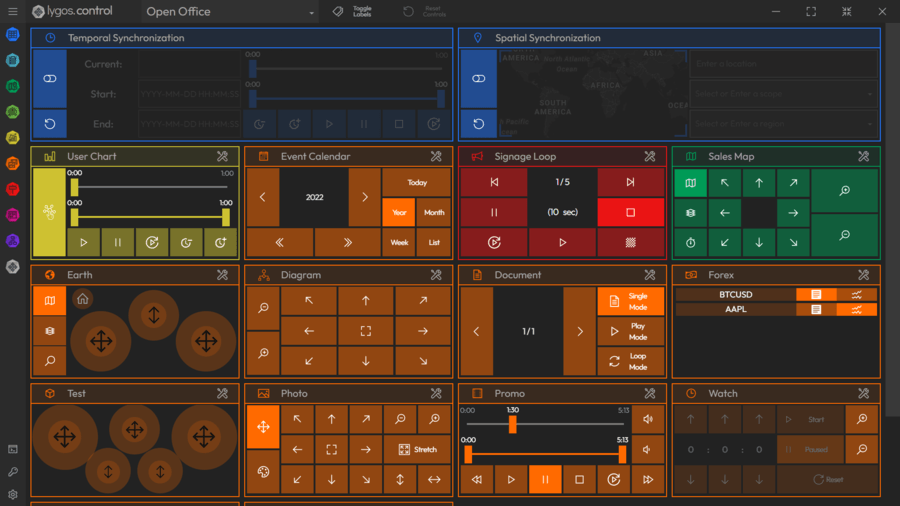
For active monitoring and briefings, the Control Client provides a dedicated Control Dashboard. This interface allows operators to physically interact with the visualizations deployed on the distant video wall. By using the touch screen on a tablet or the mouse on a remote PC, you can pan across geographic maps, zoom into specific data clusters on a scatter plot, and navigate through multi page PDF documents. These session based controls translate your local gestures into immediate visual responses on the massive video wall.
6. Synchronized Collaboration and Multi User Control
Multiple editor and control clients can be used by multiple operators simultaneously to control video walls and its visualizations. Lygos is built for collaborative intelligence. Because all remote clients connect to a single unified Server instance, configurations and editors are perfectly synchronized in real-time across the entire network.
- Synced Configurations: Any changes made by any operator from editors are synchronized. These changes will reflect to other editors and deployed visualization on the screens real-time.
- Control: For session based temporary changes operators can use Control module. These changes can be reset per visualization or reset all changes to defualt any time by an operator or automatically after session is closed. Multiple users can activate the Pointer and Drawing feature simultaneously by Display Module. Using their respective tablets or PCs, operators can draw temporary annotations, highlight metrics, and place colored pointers directly over the video wall layout, transforming the display into a massive interactive whiteboard.
7. Untethered Mobile Control and Air Mouse
In addition to tablets and PCs, any team member can use their smartphone for immediate, untethered control without downloading a dedicated application.
By generating a Control QR code for a specific Screenspace (video wall), users can scan it with their smartphone camera to launch a secure web based mobile interface that transforms smartphone transforms into an Air Mouse. By simply pointing the phone at the video wall, the user can guide a custom cursor across the screens, draw highlights, and seamlessly advance through data presentation slides while walking freely around the control room.