







Tile Layer
The Tile Layer allows administrators to integrate custom map aesthetics and specialized geographic contexts by connecting to external tile services. This capability is particularly valuable when standard base maps lack the specific cartographic details or styling required for your unique operational environment.
When displaying highly specialized cartography, such as dark mode high-contrast maps, topographical data, or custom municipal blueprints across a large-scale operations center video wall, leveraging a dedicated TileSource ensures your visual foundation perfectly matches your overlying data.
By offering opacity controls and the ability to disable default base layers to optimize rendering performance, this feature guarantees a seamless and efficient integration of third-party map tiles.
How to Add a Custom Tile Map
- Go to Data Module (Not Data Tab) -> TileSource.
- Add your custom tile service URI. (Example URI: "https://stamen-tiles-{s}.a.ssl.fastly.net/toner/{z}/{x}/{y}{r}.png" )
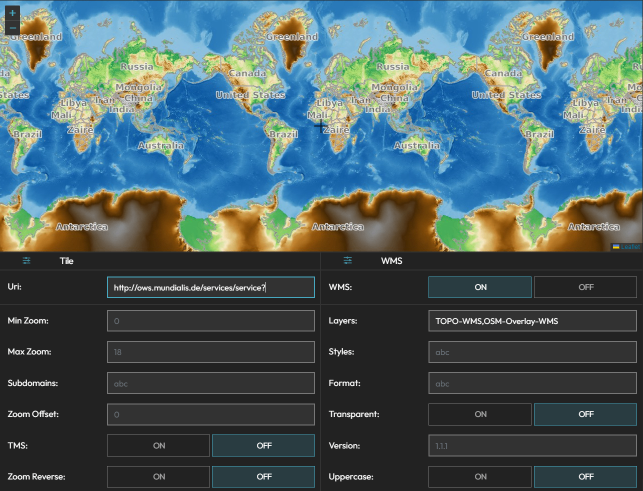
- After loading your tile source, assign it to your map by adding the TileSource as Data on the Maps Data tab.
- The layer you create from the tile source will appear on the map.
- For performance issues, consider turning off the base layer from the Base Layers tab (baseLayer -> None). Otherwise, it will fetch and render the base layer under your tile layer.
Tile Layer Settings
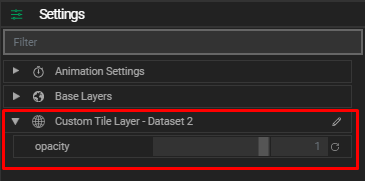
- Opacity: Adjust the transparency of your tile layer to blend or contrast with other map layers.