










Deep Zoom
Deep Zoom is a dedicated viewer for high resolution, zoomable images, enabling you to upload and manage exceptionally large visual files directly within the system. Deep Zoom provides a highly optimized viewer designed to handle massive, high resolution imagery without sacrificing performance or clarity. Whether analyzing detailed satellite photography on a dedicated operator's workstation or examining gigapixel panoramic visuals across a high density operations video wall, this tool ensures seamless navigation and fluid rendering of massive files. By supporting a wide array of file formats and offering comprehensive real-time manipulation controls, Such as contrast, gamma, and color inversion. Deep Zoom allows administrators to explore and fine tune intricate visual data effortlessly at any scale.
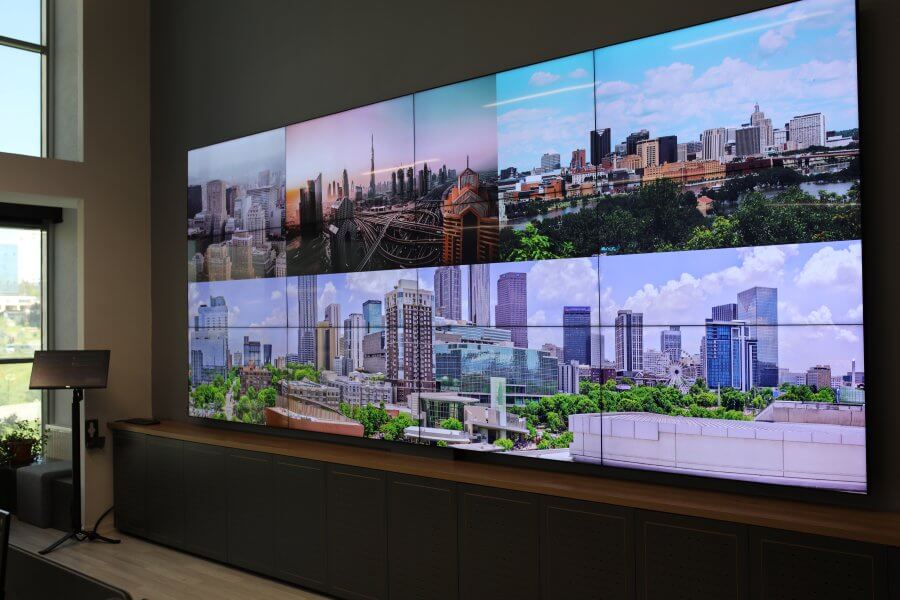
How to configure and display deep zoom on video walls and dashboards
Supported File Formats
- Import Types: SZI, PNG, JPEG, SVG, DWG
- Export Types: SZI
Image Controls & Adjustments You can fully control and edit the styling of your high resolution images using the built in manipulation tools:
- Navigation: Smoothly zoom in and out, and pan the image freely along the X and Y axes.
- Orientation: Rotate the image or flip the image horizontally.
- Fit Options: Fit the image to the display vertically, horizontally, or entirely within the frame.
- Visual Styling: * Increase or decrease Brightness, Contrast, and Gamma levels for optimal visibility.
- Toggle Invert on or off to reverse image colors.
- Toggle Greyscale on or off to view the image in black and white.
Deployment Options Quickly deploy your high resolution images directly from the editor without needing to navigate to the Display Module.
1. Deploy
Select the specific screenspace where you want to deploy the image. Selecting a screenspace will list all currently deployed visualizations on the right side of the interface.
- Add to First Available Spot: Deploy the image directly into the first empty spot on the layout grid area.
- Replace Visualization: Deploy your image by replacing a visualization or slot that is already active on the layout.
2. Assign
Assign your Deep Zoom image to a specific dynamic slot for flexible deployment.
- You can assign the visualization to an already loaded slot, or to a slot that does not yet exist on the layout grid. Once that slot is actively loaded onto a screen, the assigned image will immediately appear.
- Slots can be deployed to Layouts from the Assign Category on the Display Module.
Deploy on video walls and Dashboards
Deploy through Editor by clicking Deploy. Select a screenspace and select load into first available spot or swap with already deployed visualization.
Deploy through Display Module by navigating Display Module. Select screenspace and layout. Select visualization to deploy and click load or drag and drop into grid area.