

Wall
The Wall module provides a centralized, real-time messaging system that enables seamless communication directly within your Lygos environment. Whether you are coordinating incident responses in a fast paced control room or broadcasting live team updates across a shared video wall, this tool allows users to instantly connect and collaborate from both the Editor and their mobile devices. By simply generating user specific links or QR codes, your team can securely join the chat to share rich text messages, voice notes, and images, all displayed instantly with fully customizable styling from anywhere in the world.
How to create and display message wall on video walls and dashboards
💬 Messaging Features
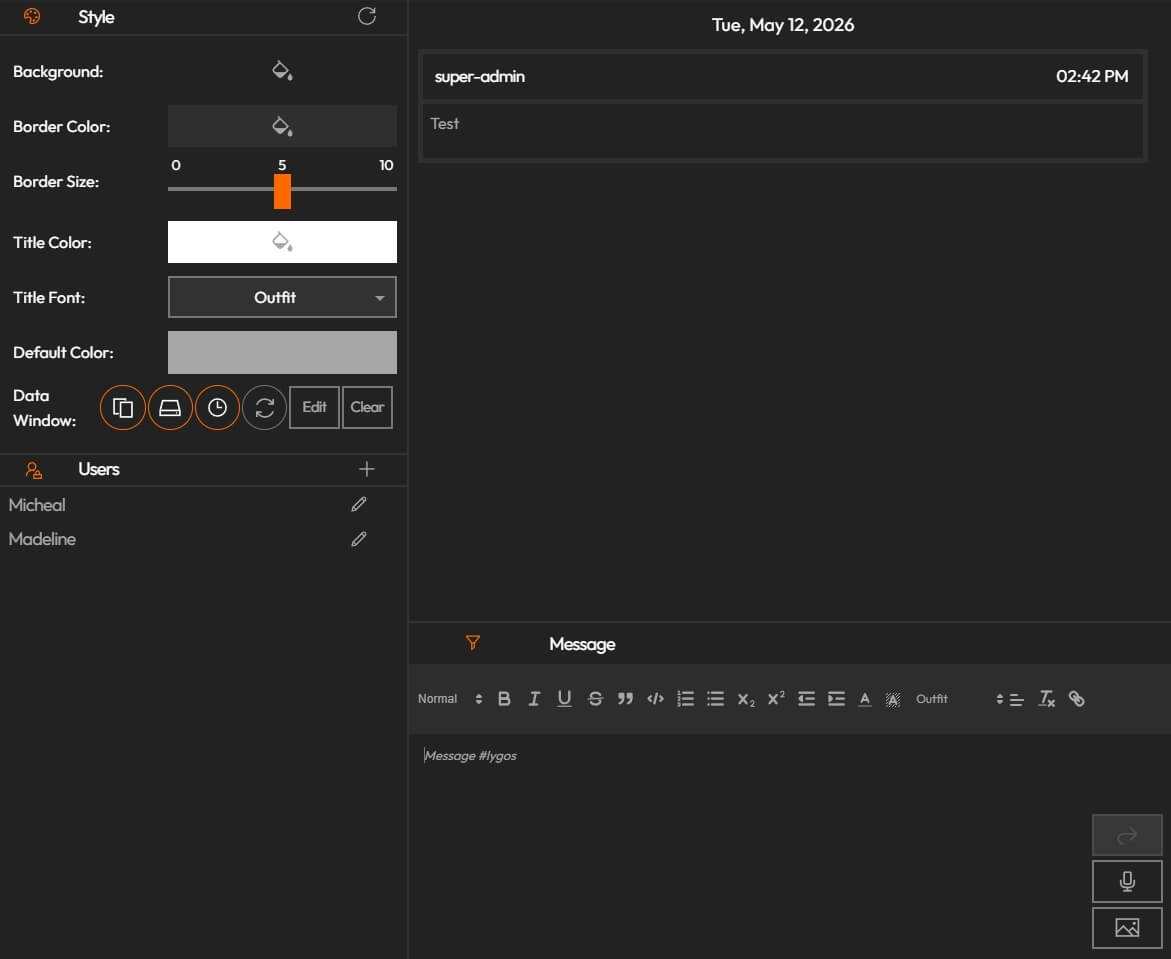
- Every user can send text messages, voice messages and images.
- Text messages support rich text formatting:
- Bold, italics, underline, strikethrough, etc.
- You can attach images and GIFs to enrich your messages.
- Send voice messages between connected users.
- Messages appear in real-time on the deployed screens.
🧭 Display Behavior
- New messages automatically appear in the visible area of the message wall.
- In the editor, you can scroll to view older messages.
- Messages can be deleted from the editor by clicking the ❌ icon at the top of each message.
🎨 Style Options
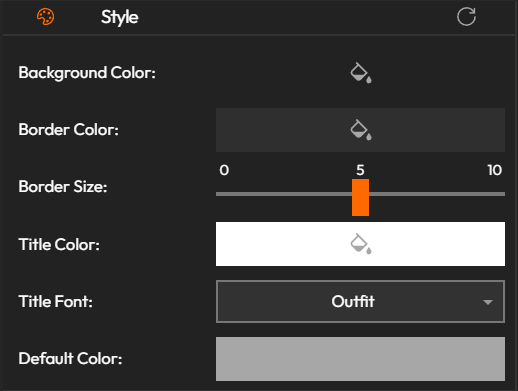
Customize how the message wall looks:
- Background Color
- Border Color
- Border Size
- Title Color
- Title Font
- Default Font Color
Deploy on video walls and Dashboards
Deploy through Editor by clicking Deploy. Select a screenspace and select load into first available spot or swap with already deployed visualization.
Deploy through Display Module by navigating Display Module. Select screenspace and layout. Select visualization to deploy and click load or drag and drop into grid area.